
Support
Pick a topic to open it. Can’t find your answer? Get in touch.
Adding events
Touch to add a new event
Either tap the “+” icon, or tap and drag on the dial to set when the event begins. When you let go, you can add the event name and adjust other details. If you need to reschedule an event later, first tap on it to select it, and then drag it to another time on the dial.
Slide to adjust
Give your event a name, and then use the duration slider to quickly change how long the event will take. No need to know the specific end time, Weel calculates that for you.
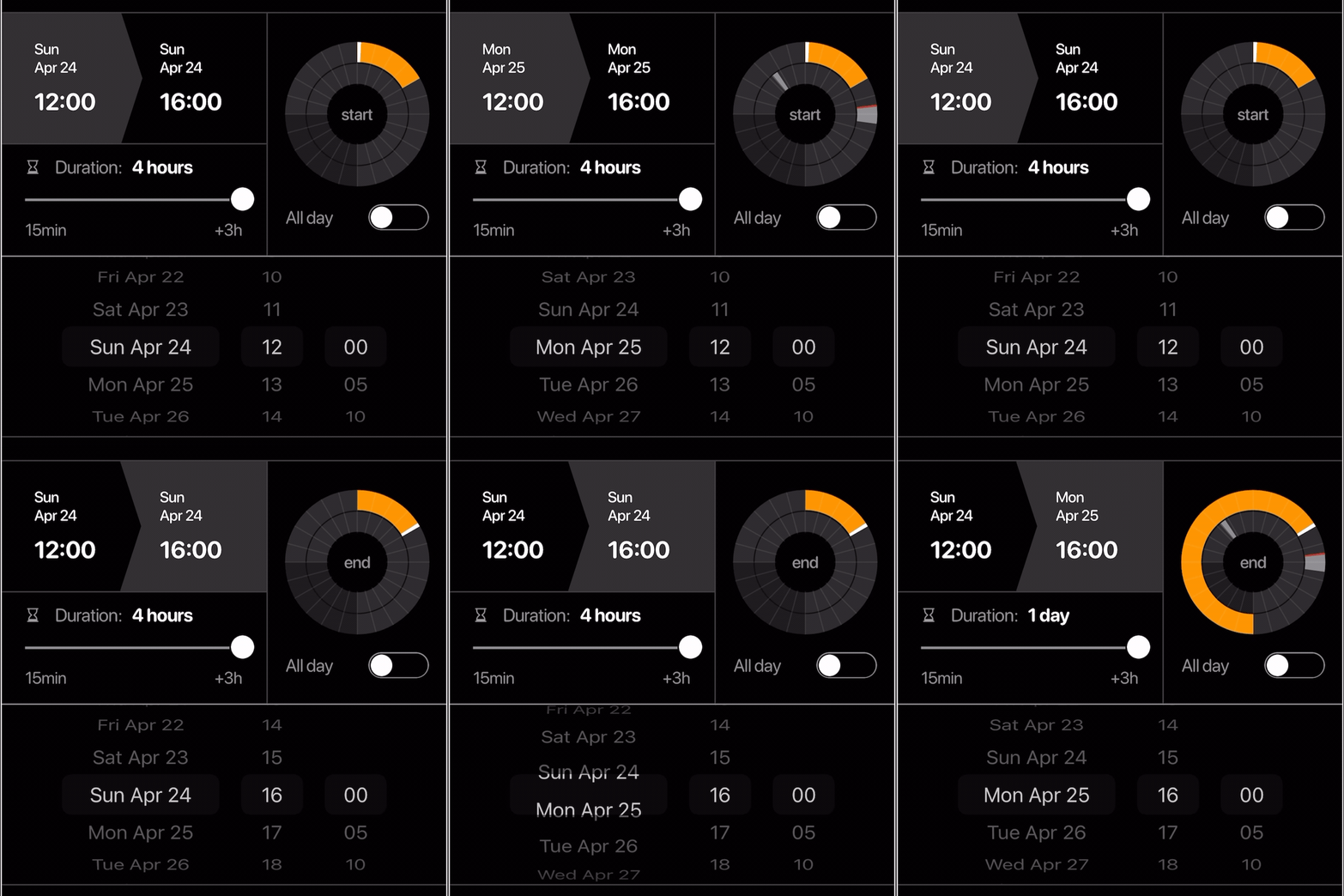
More detailed time editing
If an event spans more than a day, edit the end time by tapping it, and a traditional time selector will appear. Whatever changes you make are reflected in the small dial, so you can see if your event is about to overlap an existing one. You can also swipe on the small dial itself.
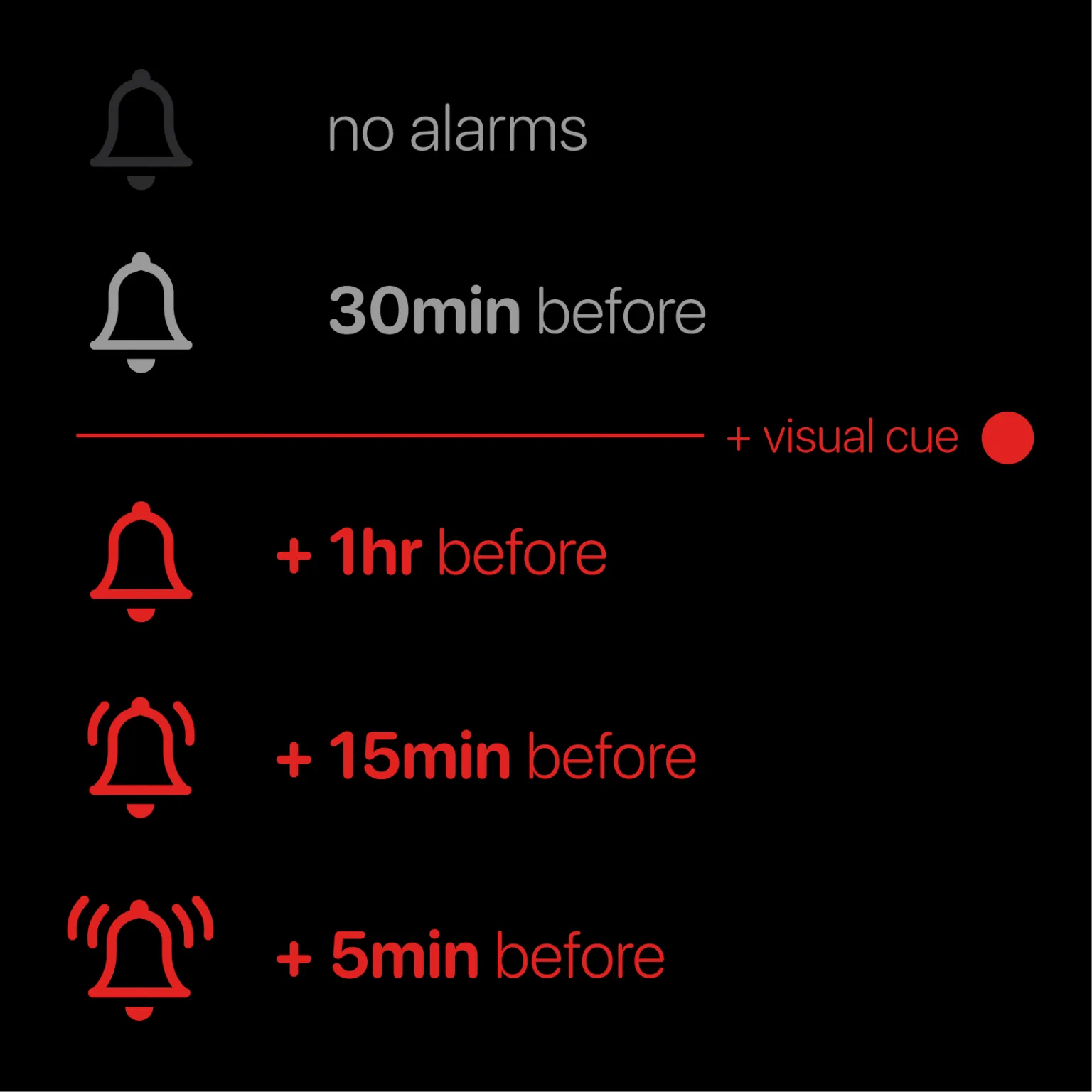
Alarms and "critical" events
Tap on the bell icon to the right of the event name. Tap "critical" to give an event an enhanced visible cue and immediately add multiple alarms at once, or just choose the alarms you prefer.
Customize your event tools
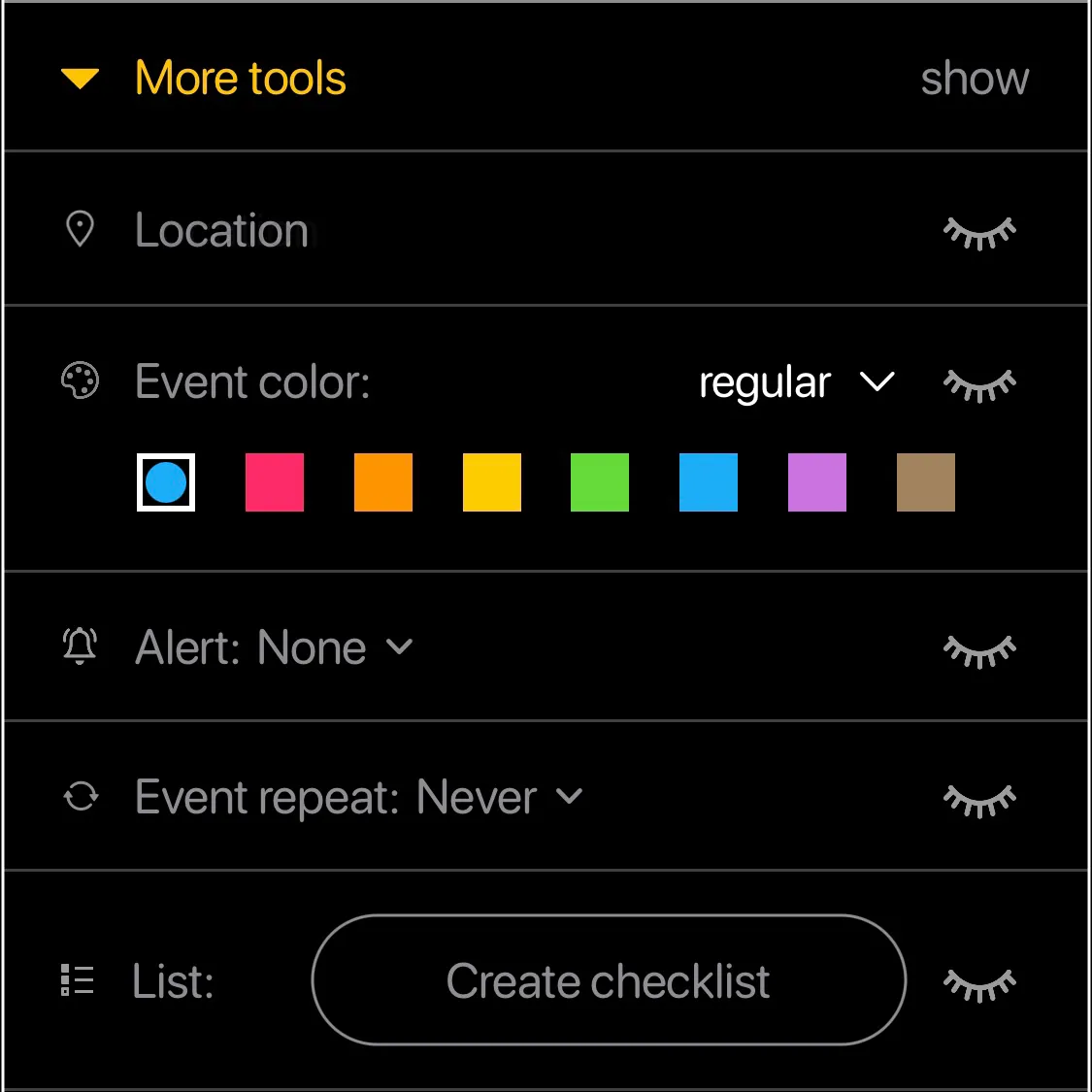
Choose which event tools you use the most, and hide the others. Tap "more tools" to see your options, and then tap the eye icon on the right to show or hide them.
Managing calendars
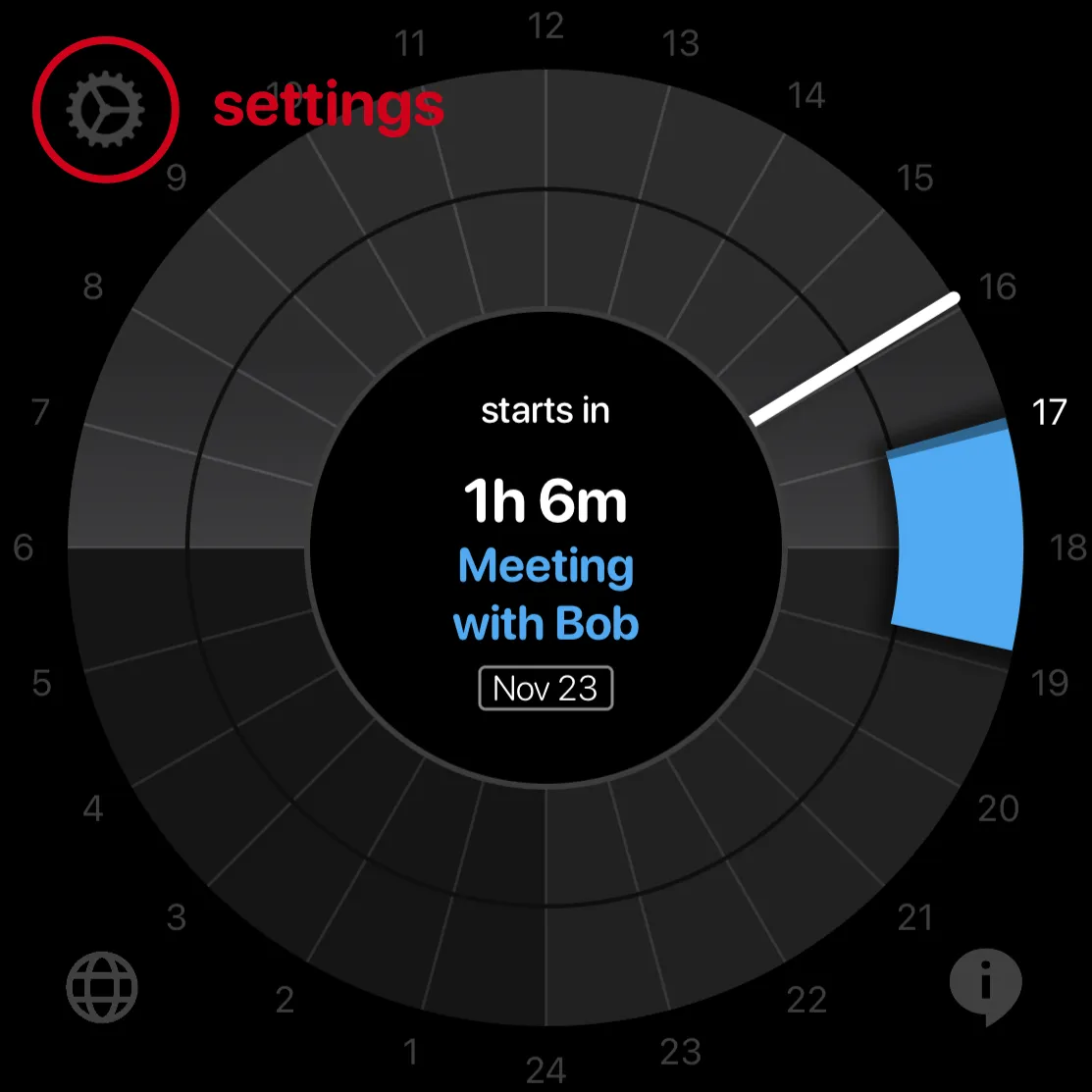
Manage calendars in Settings
Tap on the gear icon in the top left corner.
Set a calendar's visibility
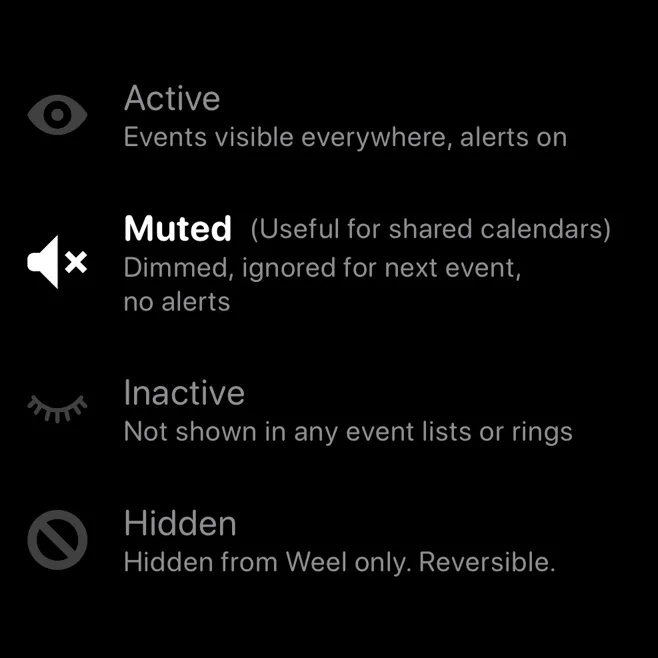
Tap on the icon to the left of any calendar to set its visibility.
Move calendars between rings
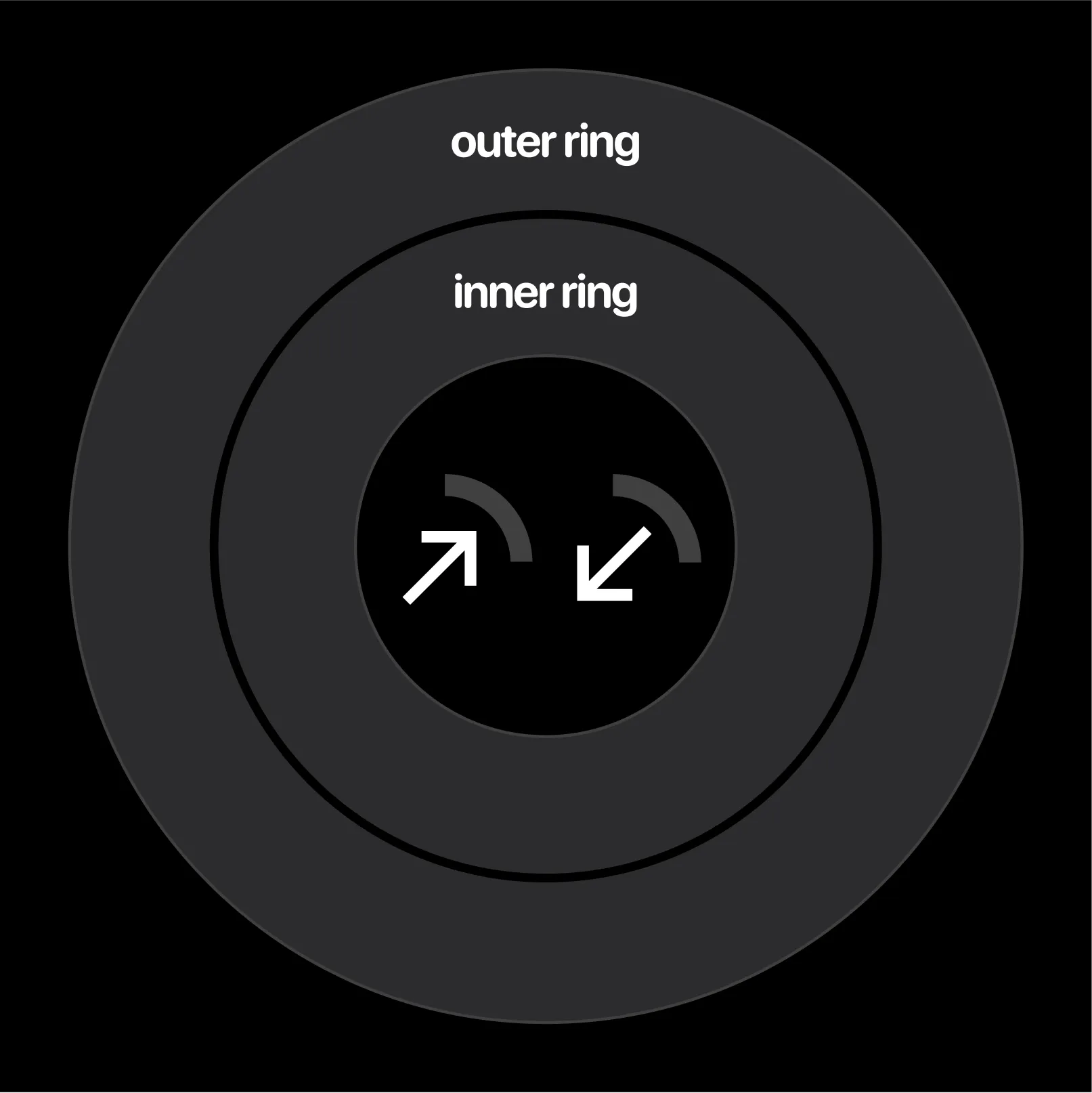
Tap on the icon to the right of any calendar to move it between the two calendar rings. These act as folders, allowing you to group calendars into two different types. For example, you might use the outer ring for personal calendars and the inner ring for shared calendars.
Not getting event notifications?
Weel is directly linked to your Apple Calendar
If you're not getting notifications, make sure your native Apple Calendar notifications are on.
(And yes, this means you can also add events to Weel by using Siri. Whatever you do with your Apple Calendar is reflected in Weel as well.)
Adding outside calendars (Google, Exchange)
Weel shows whatever can be shown by your Apple Calendar
You'll need to add outside calendar accounts to your iOS settings in order to see them. This makes them visible in your native Apple calendar as well. It's quick and easy!
Home screen widgets and Apple Watch
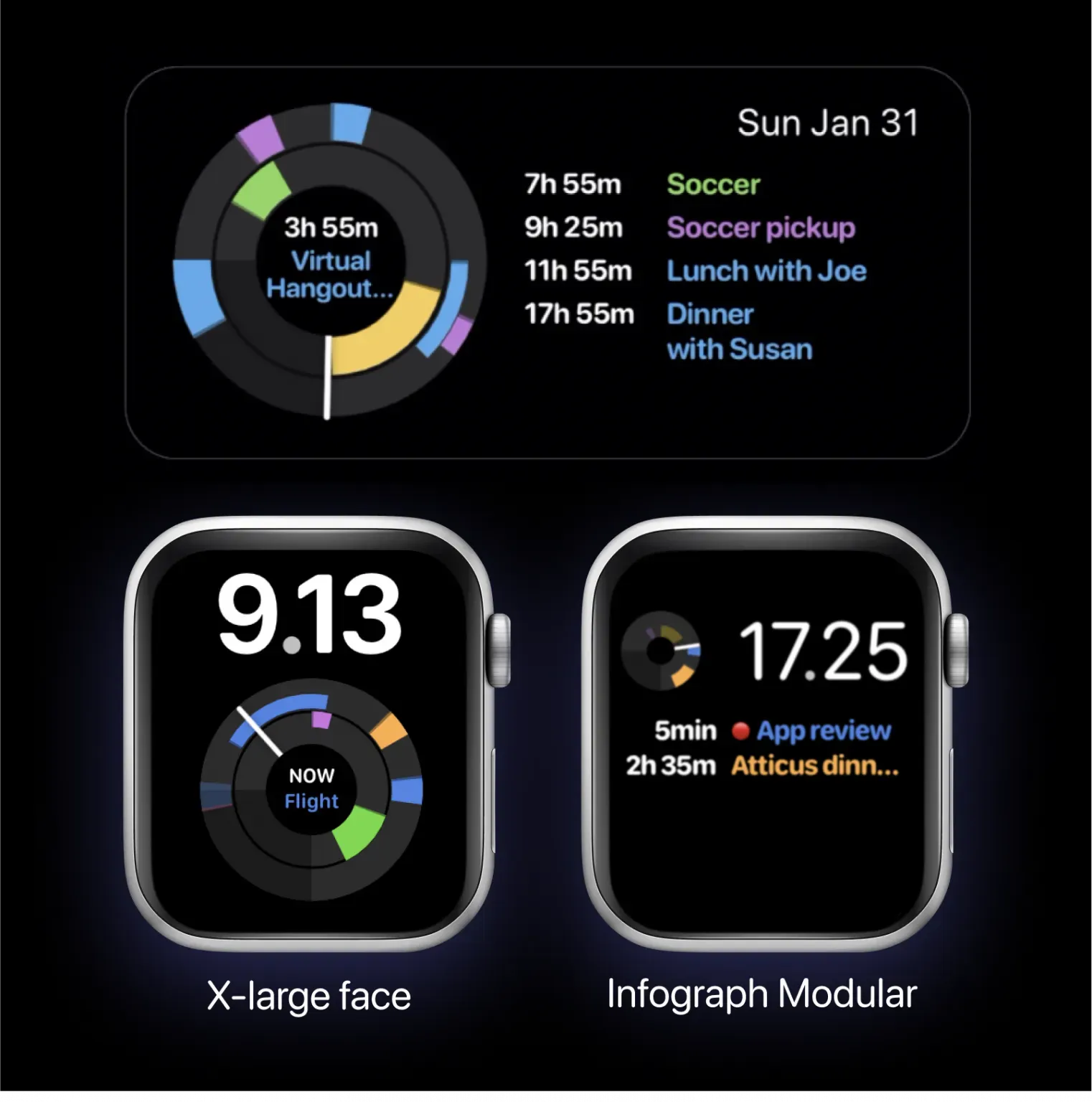
Widgets and Apple Watch complications
Here's how to add Weel widgets to your home screen.
Developers can't make their own watchfaces, however they can make "complications" which are little programs that fit into certain slots on watchfaces Apple provides.
To see the big dial on your watch, you must use the X-large watchface. This video shows youhow to set up the largest Apple Watch complication. Remember to change the color to multicolor!
If you want a small dial and an event list, Infograph Modular lets you see two different Weel complications at once. To see these complications in full color, make sure your watchface is set to multicolor.
Please note: Apple has its own way of prioritizing which complications update in which order, so if the information in the complication is old, just open Weel on your phone and then tap on the complication again to reset Weel as a priority.
Weel unfortunately doesn't work on Apple Watch models before Series 4, because they don't support more advanced complications.
Using the Time Zone tool
Simultaneous time zones
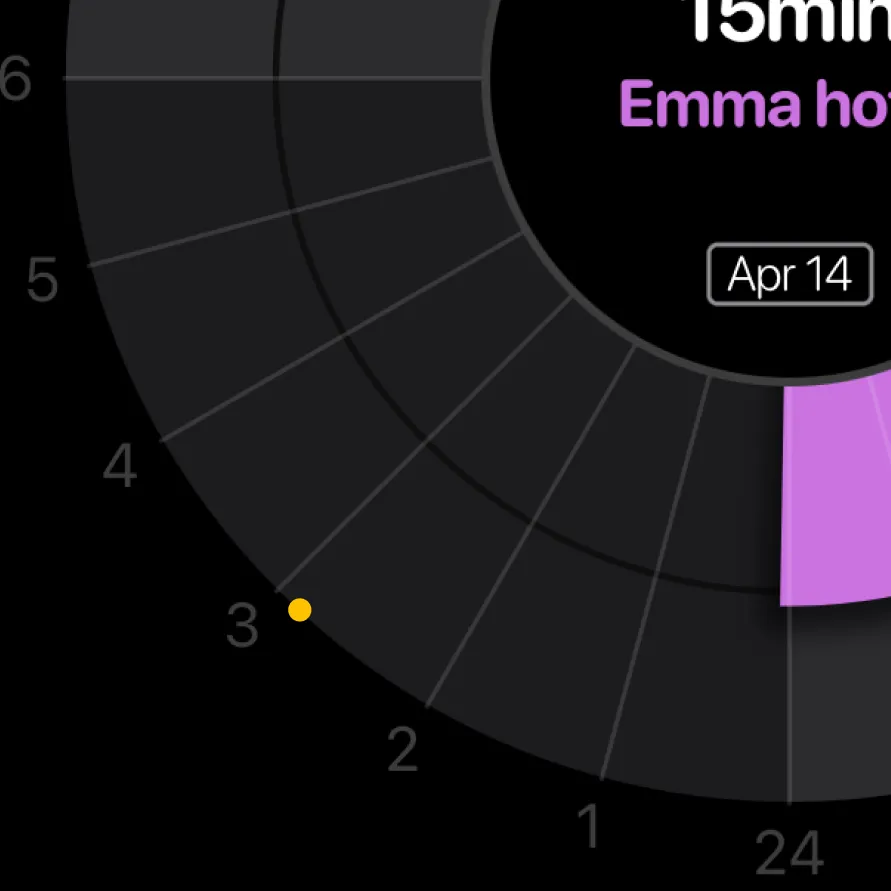
Tap on the globe icon at the bottom left of the single day view, just above the list, to see time zones. Add the ones you want. Rotate the dial to move all times at once, superimposed on your schedule. You can name a time zone whatever you like, and even use emojis if you prefer.
Time zone tracking
Once you’ve added a time zone, a tiny dot will appear on the edge of your main day view, in the color you’ve chosen for it. This lets you ambiently keep an eye on what time it is in the places that matter to you.
Understanding the 24h dial
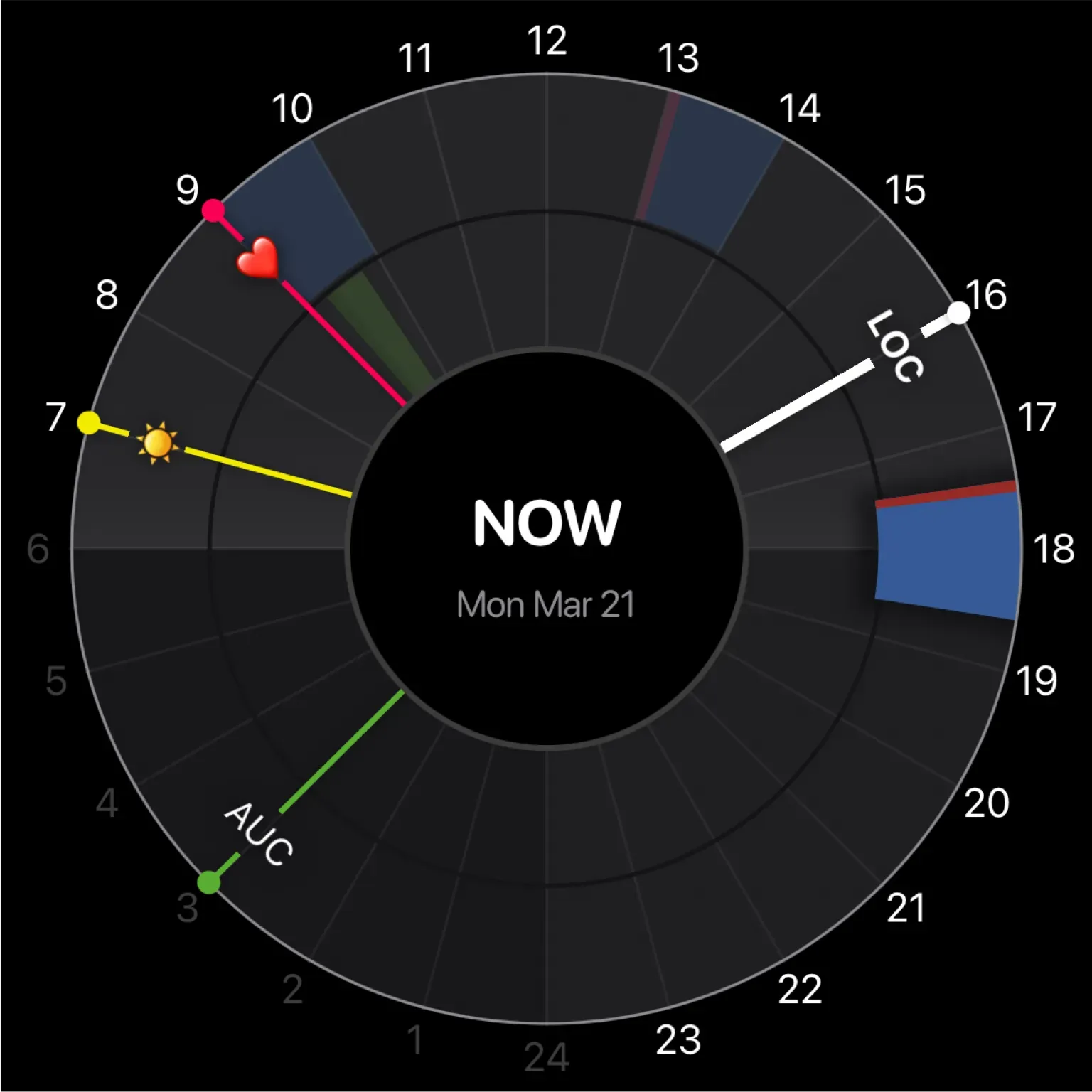
Follow the sun
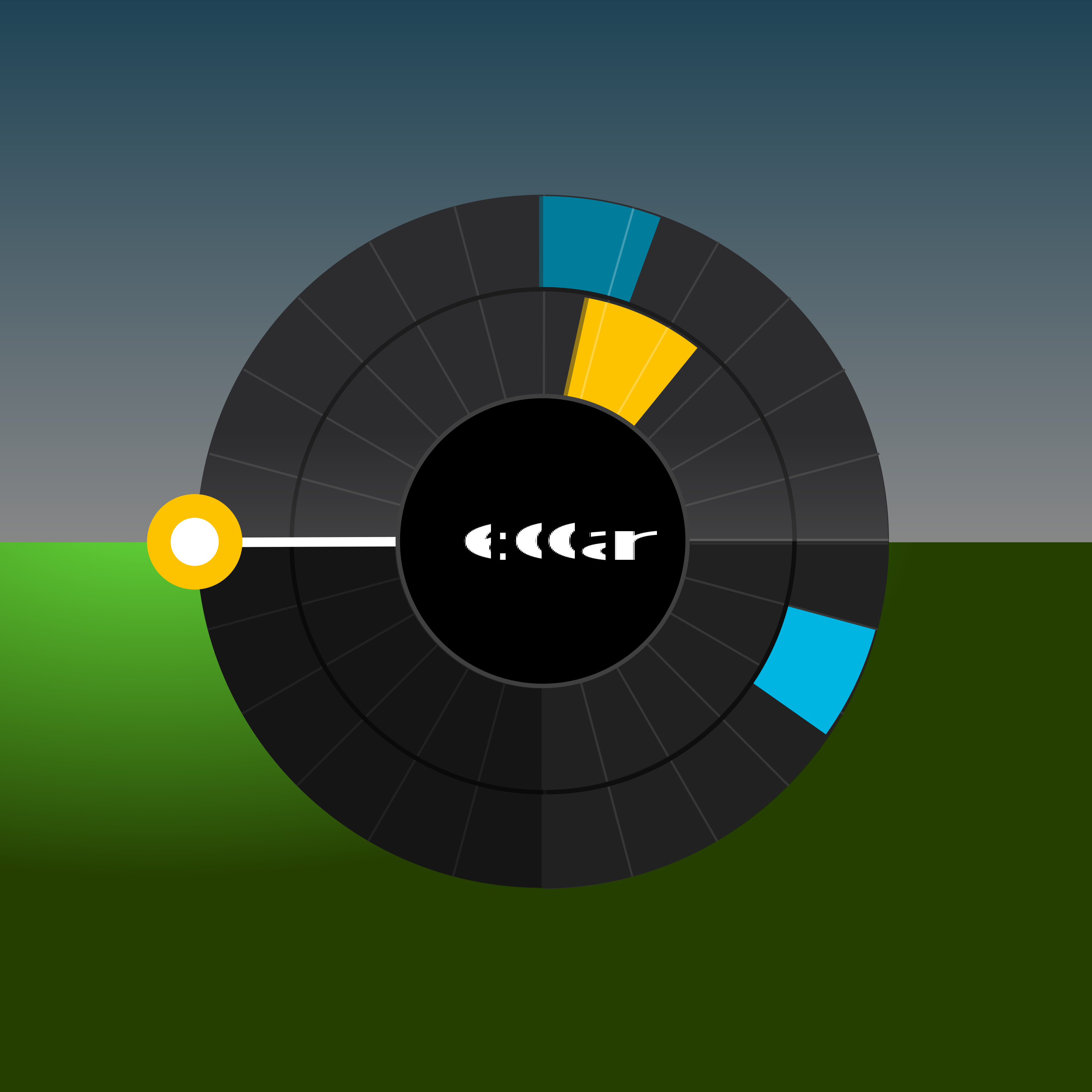
Imagine a horizon. The sun rises in the morning on the left, is at its zenith at noon, and sets in the evening on the right. At midnight, it’s directly under the horizon where we can’t see it. The clock hand in Weel follows the sun the same way.
Managing your subscription
Apple handles all subscription related things.
We unfortunately have no access to Apple's system. If you need to cancel your subscription (for this or any other app), go to your iOS Settings, tap on your name, then Subscriptions, then Weel.
If it's past your trial date and you would like a refund, you'll need tocontact Apple Support.
More questions?
Contact us.
We would love to hear from you, and really appreciate feedback.
You can use this form, or emailinfo@weelplanner.app, or ping us anytime onWhatsApp or our Telegram channel.